Hide WordPress login: that is the first thing I recommend. Every WordPress site has the same login address, /wp-login.php. Everyone knows it. Bots know it too, and they try it day and night.
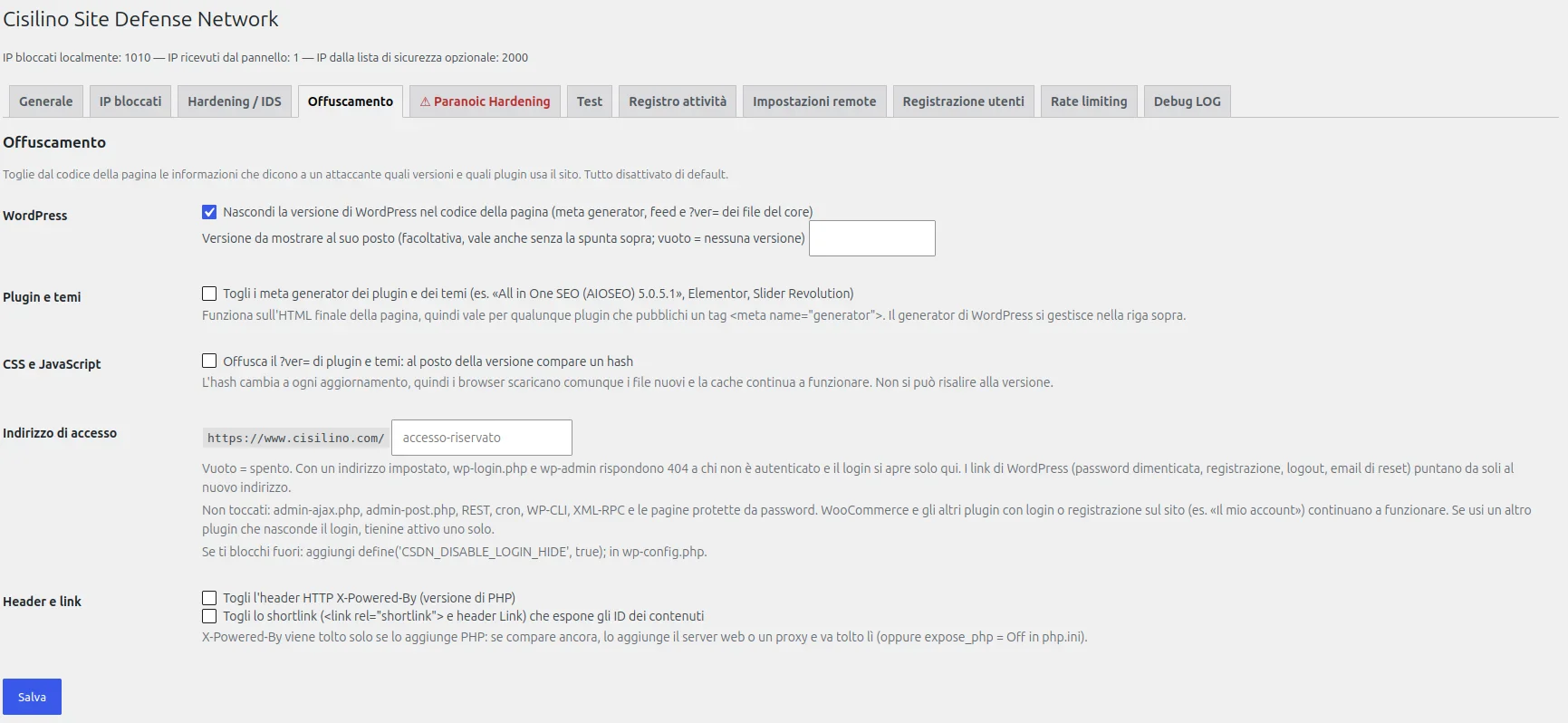
With version 1.0.20 of Cisilino Site Defense Network you can change it. There is also a new tab, «Offuscamento» (Obfuscation). It removes from the page source the versions that tell an attacker what you use. All options are off by default: updating the plugin changes nothing on its own.
Why hide WordPress login and version numbers
Look at the HTML source of your site. I did it with mine and found this line: <meta name="generator" content="All in One SEO (AIOSEO) 5.0.5.1" />. The exact version of a plugin, written out for anyone to read.
People who hunt for vulnerable sites start here. They compare the version with known vulnerabilities and pick their targets. If they cannot see the version, they have more work to do.
One thing must be said clearly. Hiding does not replace updates. Keep WordPress and your plugins up to date. Obfuscation is an extra layer, not the only one.
Hide WordPress login with a custom login URL
Choose a custom login URL, for example /accesso-riservato/. From then on, wp-login.php and wp-admin return a 404 to anyone who is not logged in. The login page opens only at the new address.
WordPress links, such as lost password, registration and logout, point to the right place on their own.
I left out admin-ajax.php, admin-post.php, the REST API, cron and password-protected pages. WooCommerce and plugins with their own login or registration, such as «Il mio account» (My account), should keep working. I say «should» because I still have to test it on a real site with WooCommerce.
You need «pretty» permalinks. If you use another plugin that hides the login, keep only one of them active.
If you lock yourself out after you decide to hide WordPress login, there is a way out. Add this line to wp-config.php and the login goes back to where it was:
define( 'CSDN_DISABLE_LOGIN_HIDE', true );Disclaimer: you add this line at your own risk. Make a copy of wp-config.php first. I am not liable for lockouts or faults caused by the change.
Hide the WordPress version and plugin versions
- The WordPress version. It disappears from the
generatormeta tag, from the feeds and from the?ver=of core files. If you prefer, you can show a version of your choice. This option used to be in the Hardening tab: settings you already saved are kept. - Plugin and theme generator meta tags. The AIOSEO tag, but also those of Elementor or Slider Revolution. The plugin works on the final HTML, so it works with any plugin that outputs a
generatortag. - The version in CSS and JS files. A short hash replaces the number. Nobody can work out the version from it, but the hash changes with every update. Browsers download the new files and caching keeps working. That is why I did not remove
?ver=completely. - X-Powered-By and shortlink. The header that reveals PHP and the short link that exposes content IDs.
X-Powered-Byis removed only if PHP adds it. If the web server adds it, you must remove it there.
The panel API key is now encrypted
This is the change that matters most for WordPress security. The key that connects the site to the panel was stored in the database in plain text. Now it is encrypted and no screen shows it any more.
In the settings the field stays empty. Leave it empty to keep the key. Type a new one to replace it. Keys you already saved are encrypted automatically when you update.
There is a limit. The plugin must be able to send the key back to the panel, so the encryption can be reversed with the site files. It protects against a database dump, backups and SQL injection. It does not protect against someone who can also read wp-config.php. If you change the WordPress salts, you must enter the key again.
A warning about CDNs
Behind a CDN or a proxy, the plugin sees only the proxy address. The automatic ban would block all visitors at once. The ban tabs now point this out. I did not change the ban logic, it is only a warning.
How to update the plugin
Update the plugin from the WordPress dashboard. Then open the «Offuscamento» tab and turn on what you need. To hide WordPress login, type the address in the «Indirizzo di accesso» (Login address) field. The full list of changes is on the changelog page. If you are interested in IP ban management, also read what is new in version 1.0.18.


Leave a Reply