The block threshold decides after how many failed logins the plugin blocks an IP. The General tab also shows you the latest attempts it has detected. Here you’ll learn to read them and understand why an IP shows as blocked or merely watched.
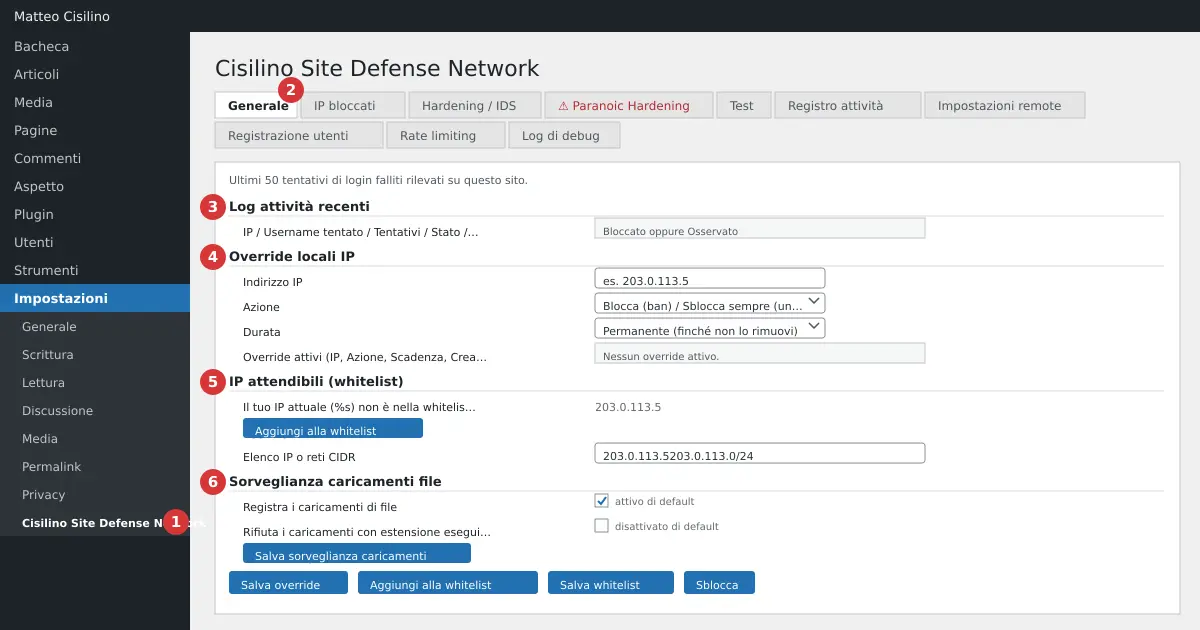
Where it is
Open Settings and then “Cisilino Site Defense Network” (point 1 in the image). The “General” tab (point 2) is the one that opens first. At the top of the page there is a row of counters: “IPs blocked locally”, “IPs received from the panel” and “IPs from the optional security list”. Below, the tab has four sections. Point 3 is “Recent activity log”, point 4 is “Local IP overrides”, point 5 is “Trusted IPs (whitelist)” and point 6 is “Upload monitoring”.
In this chapter we cover point 3 and the threshold. Manual blocking and unblocking, and the whitelist (points 4 and 5), are in chapter 5. Upload monitoring (point 6) is in chapter 8.
The recent activity log
The section shows the “Last 50 failed login attempts detected on this site.” The columns are as follows.
- “IP”: the address the attempts come from.
- “Username tried”: the last username attempted from that IP.
- “Attempts”: the total failed logins from that IP.
- “Status”: “Blocked” or “Watched”.
- “Last seen”: date and time, in the site’s time zone.
Watch out for one detail: there is one row per IP, not one row per attempt. If the same IP tries ten different usernames, you’ll see a single row with “Attempts” at 10 and the last username tried. If there’s nothing to show, you’ll read “No events recorded.”
“Watched” means the IP has failed some logins but hasn’t yet reached the threshold. Watched IPs are also sent to the panel, if you have made the connection described in chapter 3.
How the block threshold works
The value is set in the “Remote settings” tab, in the “Local block threshold (failed attempts)” field. The default value is 10. The form field accepts from 3 to 100, but only the browser enforces that: the server doesn’t check the limits, and an empty value or 0 becomes 10. For every failed login the plugin reads the IP, increases that row’s counter and checks the total. When the total reaches the threshold, the row switches to “Blocked”. The .htaccess file is rewritten immediately, without waiting for synchronisation. On a server that ignores .htaccess (nginx, for instance) the block has no effect on traffic.
A technical example: with a threshold of 3, two failed attempts from 203.0.113.7 leave it “Watched”. The third blocks it.
The threshold applies even without the panel. The connection only serves to exchange IP lists, not to block locally.
The threshold is cumulative
This is the most surprising part of the block threshold. The counter has no time window and never resets. Every failed login adds to the previous ones, even if weeks have passed. A contributor who occasionally mistypes a password can, over time, reach the threshold and find themselves locked out of the site.
Warning: for networks you know (office, headquarters) use the whitelist, described in chapter 5. Whitelisted IPs aren’t even counted. A manual unblock (“Always unblock”) keeps the IP out of .htaccess for as long as the override exists, but it doesn’t reset the count and the row stays “Blocked”. If the override expires or you remove it, the IP goes back to being blocked.
To understand further why simply counting attempts isn’t enough as a defence, you’ll find a useful guide on the OWASP page about blocking brute force attacks, which discusses the pros and cons of automatic blocking.
The risk of a proxy or a CDN
The plugin reads the visitor’s address only from REMOTE_ADDR. It deliberately ignores headers such as X-Forwarded-For, because an attacker can forge them. If the site sits behind a proxy, a CDN or a load balancer, REMOTE_ADDR can be the proxy’s IP rather than the visitor’s.
Warning: in that case every failed login would be attributed to the same IP. Once the threshold is reached, you could end up blocking the proxy’s IP, and with it every visitor. Check the “IP” column of the log: if you always see the same address, even for different users, you’re in this situation. Whitelisting the proxy’s IP unblocks the visitors, but from that moment no failed login passing through it is counted any more: the protection against repeated attempts stops working. Use an upstream defence (on the proxy or the CDN) and don’t rely on the threshold alone.
If something goes wrong
- A legitimate user shows as “Blocked”: add their network to the whitelist and unblock them as explained in chapter 5.
- You always see the same IP for different people: suspect a proxy, as described above.
- You want to change the block threshold: go to “Remote settings”, change the field and click “Save and verify connection”. If you don’t have the panel, the connection fields stay empty.
The block threshold stays local: you decide how strict to be.
Previous chapter: Connecting the plugin to the panel: Remote settings. Next chapter: Blocking, unblocking and whitelisting: the manual overrides. The full index is in chapter 1.


Leave a Reply