Before you uninstall the plugin CSDN it’s worth knowing the difference between deactivating it and deleting it, because the consequences differ. Deactivation switches off the rules and keeps the data. Uninstallation deletes the plugin’s data from your site. At the end you’ll also find the list of personal data it processes, to mention in your privacy notice.
Where it is
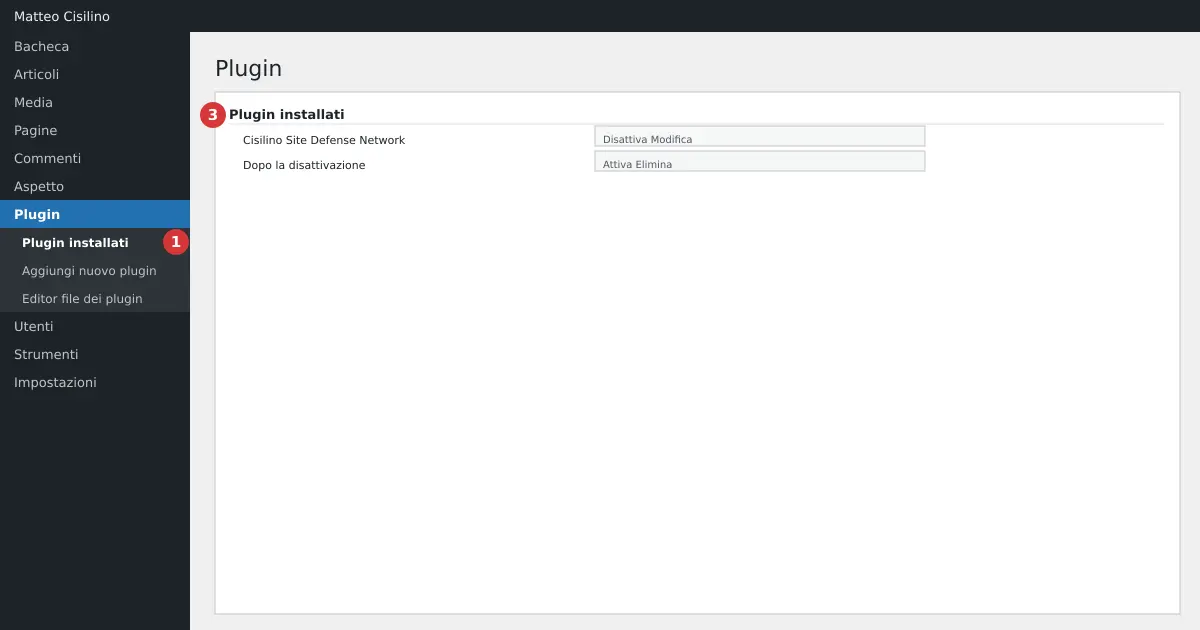
Open Plugins > Installed Plugins (point 1 in the image). On the row for Cisilino Site Defense Network (point 3) you’ll find the Deactivate link. After deactivation (point 4) the same row shows Activate and Delete.
What happens on deactivation
Deactivating the plugin stops it without touching the data. On deactivation the plugin does four things.
- it logs the event “Plugin deactivated on this site” and tries to deliver it to the panel, if configured.
- it cancels the three scheduled tasks.
- it empties both
.htaccessblocks, the blocked-IPs one and the hardening one. - it updates WordPress’s rewrite rules.
Warning: while deactivated, no rule stays in force. Blocked IPs can access the site again, and hardening no longer applies. The plugin isn’t even loaded, so the other protections don’t act either. The security headers stop too, though a browser that already received HSTS will remember it for the time that was set.
The database stays intact. If you reactivate the plugin, the .htaccess blocks are rebuilt, and you’ll find the settings exactly as you left them.
How to uninstall the plugin
To uninstall the plugin you need to press Delete in Installed Plugins, after deactivating it. Before you do, follow these steps.
- In the Activity log tab, check that the “awaiting delivery to the panel” row is at zero, if you use the panel.
- In the Debug log tab, download any files you need. Then, if you want, press Delete all files.
- Back up the site, if you haven’t already.
- Deactivate the plugin and press Delete.
What gets removed and what stays
When you choose to uninstall the plugin, it first logs “Plugin uninstalled from this site: local data removed” and tries to deliver that to the panel. Then it deletes everything, whatever happened with delivery.
The following is removed.
- the four tables
csdn_events,csdn_overrides,csdn_rate_hitsandcsdn_activity. - almost every option whose name starts with
csdn_, including the panel credentials, the whitelist and the tab settings. Three remain, listed below. - the rate limiting suspension data on every user.
- the plugin’s temporary data.
- the rules in the plugin’s two
.htaccessblocks and the rewrite rules. The# BEGINand# ENDmarkers stay in the file, empty.
The following stays instead.
- the debug log files in the
csdn-debug-*folder insideuploads, because they are your own data: delete them by hand, or with the Delete all files button, before uninstalling. - the history already delivered to the panel, which sits on the panel, not on your site.
- the lines in
.htaccessthat sit outside the plugin’s markers. - three minor options:
csdn_registration_lock(the User registration policy),csdn_remote_ban_reasons(the reasons for blocks received) andcsdn_trigger_token(the token received from the panel). The user datacsdn_registration_blocked_atalso stays, if present, along with the temporarycsdn_rl_block_*data, which expires on its own. These can be removed by hand from the database.
Warning: uninstalling the plugin also deletes the local activity log. Rows not yet delivered to the panel are lost if the panel doesn’t respond.
Personal data processed by the plugin
The plugin keeps its data on your own site, in the database. Never the password. Here’s what it processes.
- Failed logins: IP address, username tried, number of attempts, first and last occurrence, and block status. There’s no automatic deletion: they stay in the database until you uninstall the plugin.
- Activity log: date and time, WordPress user (id, login, role), IP, type of action, the object involved (for content, its title) and a short description. In some cases it adds details: for a new user, the email and roles; for a profile edit, the previous and new values of email, login, display name and website. It doesn’t save the content of posts, comments or files. For options with a suspicious name, such as keys or tokens, it only logs that they changed.
- Rate limiting: the IP and type of submission from guests, kept for one day. Author suspensions sit in the user’s own data.
- IP overrides, whitelist and the blacklist received.
- Debug log, if you switch it on: files that can contain paths and fragments of data.
The local log keeps 30 days by default, and at most 500 rows. You can change both values in the Activity log tab.
What leaves the site
Only if you connect the panel. Every 15 minutes the plugin sends the failed logins: IP, username, outcome “failed” and date. It sends up to 200 at a time. It adds the customer code and the site’s URL. It receives the blocked IPs. The activity log, with the details above, is normally sent straight away, at the end of the request, and whatever is left queued goes out with the 15-minute round. It only runs if both the log and the “Send activity to the panel” option are on. Manual overrides are never sent.
What to write in your privacy notice
For as long as you haven’t decided to uninstall the plugin, your site’s privacy notice should mention at least these points.
- that the site logs the IP and username of failed login attempts, for security reasons.
- that it keeps a log of user actions, with IP addresses, and for how many days it keeps them.
- that, if you’ve connected the panel, some of this data is sent to the external service.
- who the data controller is, and how users can exercise their rights.
Adapt the text to your own situation, with your advisor if you have one: this manual is no substitute for legal advice. For the basics on plugins, the official WordPress guide also explains the difference between deactivating and deleting.
If something goes wrong
If the site shows an error after deactivation, check .htaccess via FTP and see the chapter Troubleshooting and frequently asked questions. If you decided to uninstall the plugin by mistake, the local data doesn’t come back: you’ll need a site backup.
Previous chapter: Troubleshooting and frequently asked questions. Back to the index with the introduction to the CSDN manual.


Leave a Reply