The “⚠ Paranoic Hardening” tab of the CSDN plugin brings together the most delicate options: the HTTP security headers, HSTS and the automatic logout of inactive administrators. Here you change the behaviour of the visitor’s browser, not just the server’s. That’s why it’s all off by default.
Where it is
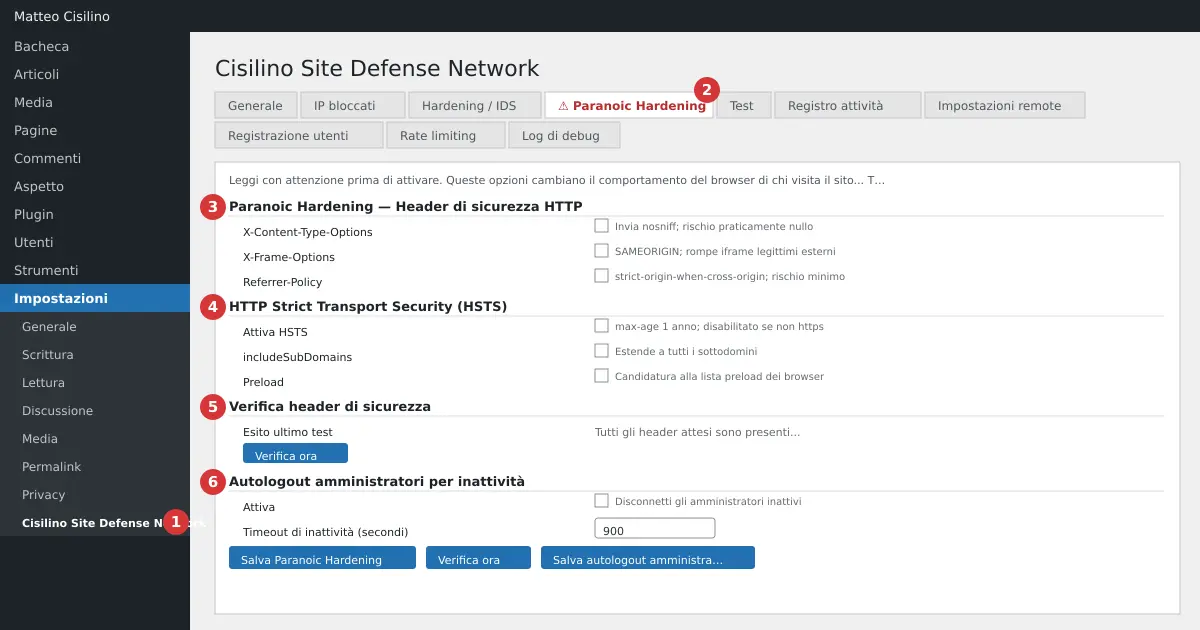
In the WordPress side menu go to Settings and choose Cisilino Site Defense Network (point 1 in the image). Open the “⚠ Paranoic Hardening” tab (point 2). Saving requires the manage_options permission; on multisite you need manage_network_options.
The tab has four sections. At point 3 you’ll find “Paranoic Hardening — HTTP security headers”. At point 4 there’s “HTTP Strict Transport Security (HSTS)”. Point 5 is “Security header check”. Point 6 is “Autologout of inactive administrators”.
What it’s for
Headers are instructions the site sends the browser along with every page. The plugin sends them through WordPress’s send_headers hook, without touching the .htaccess file. So you don’t risk a 500 error, and they work even without mod_headers.
The headers only cover the public site. They are never sent in the admin area. The plugin offers no Content-Security-Policy, and it doesn’t send X-XSS-Protection.
How to use Paranoic Hardening
HTTP security headers (point 3)
- X-Content-Type-Options sends
nosniff. The browser stops “guessing” a file’s type. The risk here is practically nil. - X-Frame-Options sends
SAMEORIGIN. The site can no longer be embedded in an<iframe>on another domain. If a partner site shows your pages, it will stop doing so. - Referrer-Policy sends
strict-origin-when-cross-origin. Towards other domains only the domain travels, not the path. Third-party statistics tools wanting the full referrer won’t get it.
Tick the boxes you need and press Save Paranoic Hardening. You’ll see the notice “Paranoic Hardening settings saved and applied.” Boxes you don’t tick are saved as off.
HSTS (point 4)
HSTS tells the browser to always use https with your domain. There are three boxes: “Enable HSTS”, “includeSubDomains” and “Preload”. The header sent carries max-age=31536000, meaning one year. The value is fixed and cannot be changed.
The plugin refuses to activate it if the page wasn’t opened over https. In that case it saves the rest and shows a red warning: “Settings saved, but HSTS was NOT activated: this request did not arrive over https. Open the panel over https and try again.” If the page is over http, the three boxes are also disabled.
If you turn off “Enable HSTS”, on saving “includeSubDomains” and “Preload” are reset too. If you turn HSTS back on, you’ll need to tick them again.
Security header check (point 5)
Press Check now. The plugin makes a real request to the site’s home page and checks which headers genuinely arrive. The result appears in the box, with the date of the last test.
- Green: “All the expected headers are present in the site’s real response.”
- Red: the active headers that didn’t arrive. This can be a proxy, a CDN or another plugin removing them. HSTS shows as missing even if the home address is http rather than https, because the plugin only sends it on https requests.
- Blue: “No active header to check: enable at least one option above and save.”
- Red with “Check request failed”: the request didn’t succeed.
The test checks whether a header is present, not its value. It doesn’t run on its own: you have to press it.
Autologout of administrators (point 6)
This section of Paranoic Hardening has its own button, Save autologout for administrators. Tick “Enable” to log out inactive administrators. Then set the “Inactivity timeout (seconds)”. If the browser blocks localStorage (in a private window, for instance), the check never fires and you’re never logged out.
The default value is 900, meaning 15 minutes. The minimum is 60 and the maximum is 86400. If you write a number outside those limits, the plugin moves it to the nearest allowed value. For example, 30 becomes 60. The notice stays green, so reread the number in the field after saving.
Only users with the manage_options permission are logged out. Editors and authors aren’t touched. Inactivity is measured in the browser: mouse, keyboard, scrolling and touch all count. The session closes just as with “Log Out”, and unsaved changes in an open form are lost.
Recommended order of activation
- Open the panel over https.
- Turn on X-Content-Type-Options, save and press “Check now”.
- Turn on Referrer-Policy, save and check.
- Check that no site embeds yours, then turn on X-Frame-Options, save and check.
- Turn on autologout with a generous timeout, for example 1800. Lower it only after a few days.
- Last of all, consider HSTS, without includeSubDomains and without Preload.
Turn on one option at a time. If something breaks, you’ll know straight away which one did it.
The risk of HSTS, includeSubDomains and Preload
Warning: HSTS can’t be undone from the site. If you untick it, the plugin stops sending the header, but browsers that already received it will remember it until it expires. The plugin never sends max-age=0, so there’s no “cancel”. The tab’s own banner says so too: the effects can stay visible for weeks or months.
With HSTS on, the browser refuses any non-https connection to the domain. If the certificate expires or breaks, the browser no longer even shows the “proceed anyway” screen. The site becomes unreachable from that browser.
- includeSubDomains extends the rule to every subdomain. A single subdomain without valid https, even a test one or a future one, becomes unreachable for anyone who has already visited the site. Only turn it on if every subdomain is, and will remain, https.
- Preload only adds the
preloadflag to the header. On its own it doesn’t register the site: submitting it to the browsers’ list is done by hand on hstspreload.org. The list sits inside the browsers, and getting out of it takes weeks. Treat Preload as a final, one-way decision.
Always save from the https version of the panel. Disabled boxes aren’t sent by the browser: saving from an http page switches off HSTS and its sub-options.
What happens behind the scenes
The Paranoic Hardening settings are WordPress options, not server rules. Autologout prints a script only on admin pages. The script records the last activity in the browser’s localStorage and checks the timeout every 5 seconds. On expiry it asks admin-ajax.php to log you out and takes you to the login page. The save only lands in the Activity log if you actually changed something.
If something goes wrong
- The box turns red after “Check now”: a proxy, a CDN or another plugin is stripping the headers. Check their configuration.
- A partner site no longer shows your pages: untick X-Frame-Options and save.
- You can’t turn on HSTS: reopen the panel with the https address.
- To check the headers by hand, use your browser’s developer tools or
curl -Ion the site’s https address.
To understand HSTS better, read the page on Strict-Transport-Security on MDN. It explains max-age, includeSubDomains and preload precisely.
Previous: Test tab: checking that the protections work. Next: User registration: who can create accounts. For the general index go to chapter 1 of the manual.


Leave a Reply