The “User registration” tab decides who can create new accounts on your site, and with which role. It’s the defence against hidden administrators, meaning accounts created secretly to get back onto the site after an attack. User registration WordPress is governed from here. In this chapter you’ll see the registration policy, the allowed roles and the mandatory email address.
Where it is
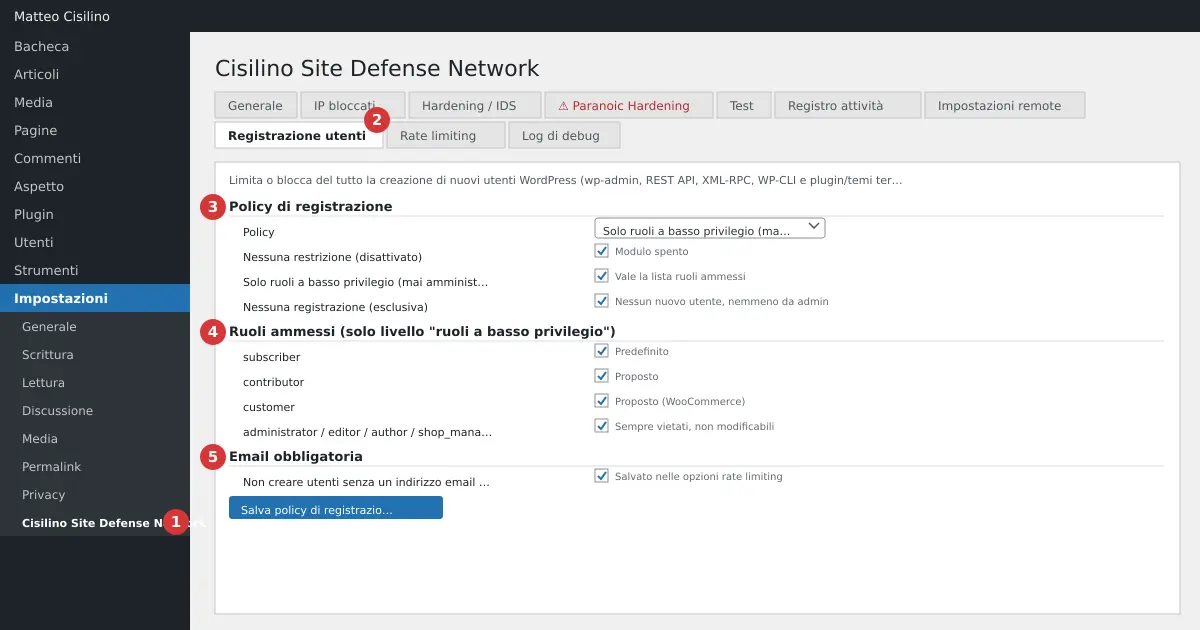
In the WordPress menu open Settings and then Cisilino Site Defense Network (point 1 in the image). Choose the “User registration” tab (point 2). Saving requires the manage_options permission; on multisite you need manage_network_options.
There are three sections. Point 3 is “Registration policy”. Point 4 is “Allowed roles (only at the “low-privilege roles” level)”. Point 5 is “Mandatory email”.
What it’s for
The policy applies to every route of account creation: the wp-admin panel, the REST API, XML-RPC, WP-CLI, and any plugin or theme using WordPress’s own functions to create users. The check is done in PHP, without touching the .htaccess file.
How to use it
Registration policy (point 3)
Choose a single level out of three. They don’t add up.
- “No restriction (disabled)”: the module is off and WordPress behaves as usual.
- “Low-privilege roles only (never administrator/editor/author)”: this is the default level. The allowed roles at point 4 apply.
- “No registration (exclusive)”: no new user can be created at all.
Allowed roles (point 4)
This only applies at the low-privilege roles level. You can tick subscriber (ticked by default), contributor and customer (useful with WooCommerce). The administrator, editor, author and shop_manager boxes are always disabled, marked “never allowed”.
Mandatory email (point 5)
The box “Don’t create users without a valid email address” is on by default. It stops users being created without a valid email, through any route. It doesn’t touch users who already exist. This setting is saved together with the rate limiting ones, but is managed here.
At the end, press Save registration policy. You’ll see “User registration policy saved.” The save lands in the Activity log, under the label “User registration”.
User registration WordPress: default values and limits
- The default policy is “Low-privilege roles only”, active even if you’ve never saved anything.
- The starting allowed role is
subscriberalone. - Forbidden roles are always discarded, even if someone tries to submit them by hand.
- The list of roles is fixed: it doesn’t show your site’s custom roles.
- There are no email domain lists, captchas or anti-spam checks on registrations.
Warning: with “No registration (exclusive)” nobody can create users, not even the administrator. The “Add New User” item disappears from the menu, and opening user-new.php by hand gives a 403 error. If, at the low-privilege roles level, you untick every role, the list stays empty and no user is allowed at all. Here, though, the menu item and the page stay visible: the 403 error only arrives when you try to create the user.
With the default level you can’t create an editor or an author, not even as an administrator. The plugin makes no exception for someone already logged in. To create a user with a high role, switch temporarily to “No restriction”, create the user, and then switch back.
Also check the “New user default role” under Settings > General in WordPress. If it’s a forbidden role, such as Editor, every registration without an explicit role is rejected.
What happens behind the scenes
The main check acts on the pre_insert_user_data filter, only when a user is created. Changes to existing users always go through. A rejected attempt shows the title “Registration not allowed” with a 403 error. On the REST API you get a 403 JSON error instead of the page.
With any policy active, the plugin removes the XML-RPC method wp.newUser. With the exclusive policy it also forces WordPress’s “Anyone can register” option to false. At the low-privilege level, that option stays whatever you chose.
There’s also a safety net after creation. If an account is somehow created in violation of the policy, the plugin immediately strips its role and writes an event to the Activity log. The account isn’t deleted, so you can examine it.
Warning: a compromised plugin or theme writing straight to the users table with a database INSERT doesn’t pass through any filter. No PHP plugin can stop that. The user registration WordPress protection in this tab is a strong barrier, but it isn’t absolute.
Examples
- A showcase site with no public users: choose “No registration (exclusive)”.
- A site with subscribers or comments: leave the default level with
subscriber. - A shop with WooCommerce: add
customer. - You need to add a collaborator with a high role: use “No restriction” only for as long as needed.
If something goes wrong
If a sign-up is rejected with the message about a role not being allowed, check WordPress’s default role and the roles ticked at point 4. The Activity log tells you if an account has had its role stripped by the safety net. To understand the roles better, read the page on roles and capabilities in the WordPress documentation. It lists what each role can do.
Previous: Paranoic Hardening: security headers and the admin session. Next: Rate limiting: limits on authors and visitors. For the general index go to chapter 1 of the manual.


Leave a Reply