A WordPress security test serves one purpose: to know whether a protection genuinely works, not just whether it’s switched on. The “Test” tab of the CSDN plugin runs two live checks. It changes no settings at all. It checks the site right now.
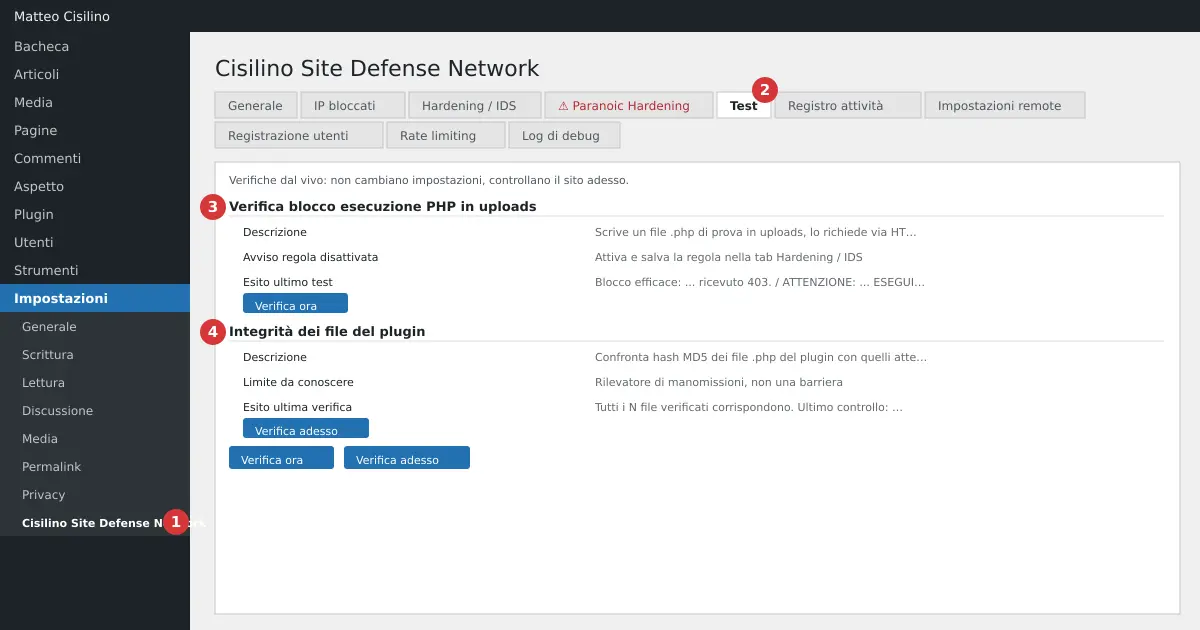
Where to find the WordPress security test
Open Settings > Cisilino Site Defense Network (point 1 in the image). Click the Test tab (point 2). You’ll find two boxes:
- point 3: “Check PHP execution block in uploads”.
- point 4: “Plugin file integrity”.
After each button the site takes you back to the General tab, with a notice at the top. The result, though, is written in the Test tab. Reopen it to read it.
Check PHP execution block in uploads
This box tests the “Block PHP execution in wp-content/uploads” rule from the Hardening / IDS tab, described in the Hardening / IDS chapter. The text explains that this is the only way to know whether the rule is genuinely effective on this site. A disabled AllowOverride, or a more specific block on the server, could make it useless without telling you.
How to use it
- In the Hardening / IDS tab, turn on the rule and click “Save hardening rules”.
- Open the Test tab.
- In the “Check PHP execution block in uploads” box, click “Check now”.
- Go back to the Test tab and read the result, in the “Last test:” row with its date.
If the rule isn’t active and saved, the button is disabled. The box shows: “Turn on and save the “Block PHP execution in wp-content/uploads” rule in the Hardening / IDS tab before you can run this test.”.
What the test does
The plugin writes a small test .php file into uploads. It requests it over HTTP, with a 10-second limit. Then it deletes it straight away, whatever happens. The file contains nothing but a check print statement.
How to read the result
- Green: “Block effective: the request to the test file received N.”. The number is 403 or 404.
- Red: “WARNING: the test PHP file was EXECUTED (response N).” The rule isn’t blocking anything. The message suggests checking that
AllowOverrideallows.htaccessin that folder, and that there’s no more specific<Directory>block. - Yellow: “Unclear result (response N, body not recognised): check manually with a direct request to the site.”.
- Blue: “Rule disabled: turn it on and save it before running the test.”.
- Red, for errors: “Unable to determine the uploads folder.”, “Unable to write the test file to uploads (permissions?): test not run.”, or “Check request failed”, with the reason.
Warning: if the site can’t call itself, for instance because of a firewall, an HTTP password or a local DNS setting, the test returns an error or an unclear result. A 404 counts as a block, but it could be caused by something else. The test only checks the standard uploads folder. For a few seconds a .php file exists in uploads: if the block doesn’t work it could be executed, but it only contains a check print statement.
Plugin file integrity
This is the second part of the WordPress security test. The second box compares the MD5 hashes of the plugin’s .php files against the ones expected. It looks for files that are changed, missing or added. The check runs on its own once a day. The “Check now” button runs it immediately.
The box states a fixed limit: anyone who already has write access to the files can also rewrite the hashes or switch off the check. It’s a tamper detector, not a barrier.
How to use it
- Open the Test tab.
- In the “Plugin file integrity” box, click “Check now”.
- Read the notice: “Integrity check run: the result is in the “Plugin file integrity” box.”.
- Reopen the Test tab and read the box.
How to read the result
Green: “All N files checked match. Last check: date.”. If the reference is a snapshot, the box adds that it detects later changes, not a plugin already compromised at installation. Red: “WARNING: the plugin’s files do not match what is expected.”, with the lists “Changed”, “Missing” and “Unexpected”. Yellow: “No reference available”. In that case, reactivate the plugin.
The manual button doesn’t write to the activity log. Only the scheduled check does that, and only if it finds a problem or if the files return to normal after an alert. For the details, read the Upload monitoring and the integrity check chapter.
Warning: if you’ve edited a plugin file by hand, the red alert is normal. If you haven’t, treat the site as potentially compromised: reinstall the plugin from a trusted copy and check the rest of the installation.
If something goes wrong
Repeat the WordPress security test after every fix. If the PHP test returns red, the rule isn’t protecting anything. Ask your hosting provider whether .htaccess is enabled. If the server doesn’t read .htaccess, nginx for instance, the rule has no effect. Repeat the test after every fix. A 403 is the response you want to see: the page on status code 403 on MDN explains what it means.
Previous chapter: Upload monitoring and the integrity check. Next chapter: Paranoic Hardening: security headers and the admin session. For the list of chapters go back to the introduction to the manual.


Leave a Reply