Rate limiting WordPress offered by CSDN puts a cap on write abuse. On one side are authors who publish too much content in too little time, for example through a compromised account. On the other are visitors who send too many comments or contact forms. Each cap switches on and adjusts itself.
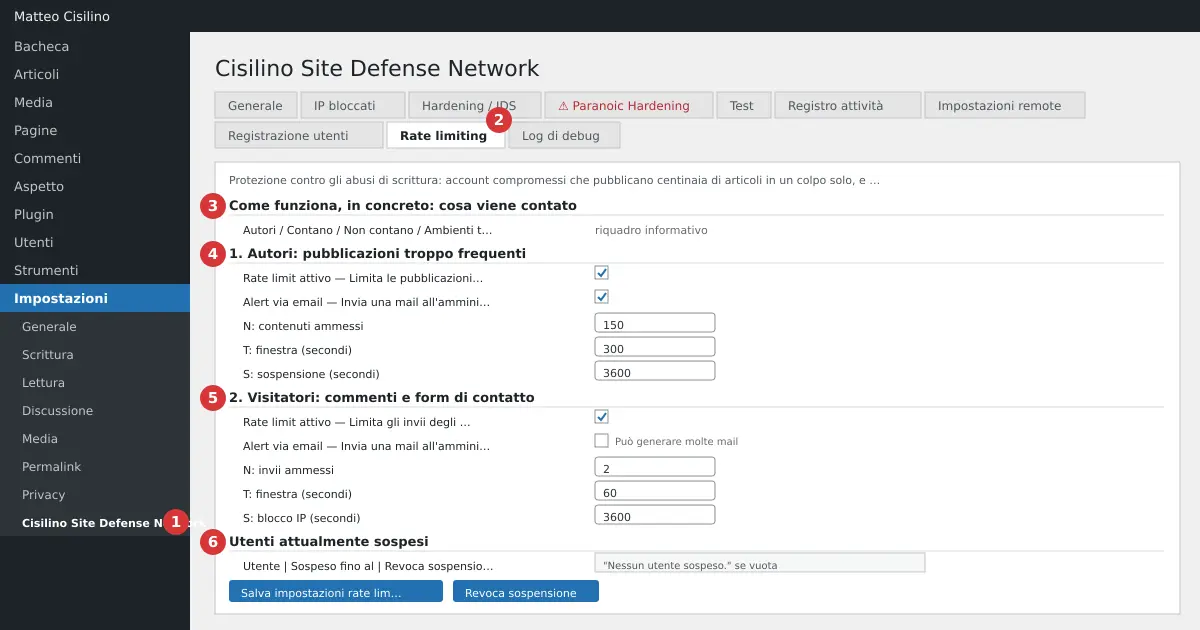
Where it is
Go to Settings and choose Cisilino Site Defense Network (point 1 in the image). Open the “Rate limiting” tab (point 2). Saving requires the manage_options permission; on multisite you need manage_network_options.
There are four sections. Point 3 is “How it works, in practice: what gets counted”. Point 4 is “1. Authors: publishing too often”. Point 5 is “2. Visitors: comments and contact forms”. Point 6 is “Currently suspended users”. All time values are in seconds.
What it’s for
The cap on authors stops an account publishing at full speed before it fills the site with content. The cap on visitors slows anyone flooding comments and forms. The code also knows a third cap, the mandatory email. You’ll find it in the “User registration” tab, described in the previous chapter.
How to use it
What gets counted (point 3)
The info box explains the rules. For authors, the check fires when WordPress saves a post or a page. The plugin counts how many posts and pages by that author have a creation or publication date within the last T seconds. If there are more than N, the author is suspended. The save that crosses the threshold goes through fine: the suspension blocks the ones that follow.
Plugins and themes don’t count, nor do logins, edits to content older than the window, auto-drafts, revisions, the trash, media, comments or other content types. Temporary environments, like the Plugin Check test one, are ignored.
Warning: the example written in that info box still quotes N=3. It’s old text. The real default value is 150 items in 5 minutes, from version 1.0.13.
Authors (point 4)
- Tick “Rate limit active” to limit authors’ publishing.
- Decide whether to keep “Email alert”: you get a mail when an author is suspended.
- Set “N: allowed items”, from 1 to 1000. Default 150.
- Set “T: window (seconds)”, from 10 to 86400. Default 300, meaning 5 minutes.
- Set “S: suspension (seconds)”, from 60 to 2592000. Default 3600, meaning 1 hour.
- Press Save rate limiting settings.
The mail goes to the admin address set under Settings > General. It contains the user, the content within the window, the expiry, and a list of up to 20 recent items to check. The suspension doesn’t change that content.
Visitors (point 5)
- Tick “Rate limit active” to limit guest submissions.
- “Email alert” is off by default. On an exposed site it could generate a lot of mail. It goes to the same admin address under Settings > General, once per block.
- “N: allowed submissions”, from 1 to 100. Default 2.
- “T: window (seconds)”, from 5 to 3600. Default 60.
- “S: IP block (seconds)”, from 60 to 2592000. Default 3600.
This cap only concerns people who aren’t logged in. It counts submissions by IP and by type, comments or forms. A block on comments doesn’t block forms. The contact forms covered are Contact Form 7’s. A rejected comment shows “Too many submissions” with a 429 error.
If a value is outside the limits, the plugin moves it to the nearest allowed one. Saving shows “Rate limiting settings saved. Values outside the allowed limits have been moved to the nearest one.”
Rate limiting WordPress: suspensions and blocks
A suspended author keeps their role and can still use the rest of the admin panel. They lose, though, the permission to create and publish posts and pages. “Add New Post” and the pages menu items disappear, and opening those screens gives “permission denied”. An unclosable notice appears in the dashboard.
Warning: author suspension affects administrators too. A suspended administrator loses the ability to create and publish, but can still open Settings and revoke their own suspension. There’s no list of exceptions for users, roles or IPs: the IP whitelist in the General tab doesn’t exempt anyone from rate limiting.
Warning: the visitor block is by IP. Several people behind the same IP, such as an office, can be blocked together. In that case raise N. The plugin only reads the connecting address (REMOTE_ADDR) and not proxy or CDN headers: behind a reverse proxy or a CDN every visitor can appear with the same IP and end up blocking each other.
How to revoke a suspension
You have two routes.
- Wait. The suspension ends on its own after S seconds.
- In the section at point 6, “Currently suspended users”, press Revoke suspension on the user’s row. You’ll see “Suspension revoked: the user can create and publish content again.” If the table is empty, you’ll read “No suspended users.”
The table shows at most 100 users. The dashboard notices carry the links “Revoke the suspension” and “Check and revoke”, which lead to the same tab.
Switching off “Rate limit active” doesn’t remove a suspension already in progress. To remove it you have to revoke it, or wait for it to expire.
What happens behind the scenes
The suspension is information saved on the user, with an expiry date. For guests, every submission is logged for 24 hours in a plugin table, then counted within the window. If two requests arrive together, one extra may slip through. Suspensions and blocks land in the Activity log, if it’s on and if the Users and Comments groups are enabled.
Warning: a legitimate bulk import can trip the cap on authors. Before a migration, switch off the cap or raise N.
Examples of rate limiting WordPress
- A blog with a single author: you can lower N to 10 or 20 with T=300. You’ll catch a compromised account sooner. These are trial values, not a rule of the plugin.
- A newsroom that duplicates or imports pages: keep 150/300 or higher.
- Offices with a shared IP: raise visitors’ allowed submissions to 3 or 5.
Useful conversions: 300 seconds is 5 minutes, 3600 is 1 hour, 86400 is 1 day. To learn more about the general topic, read the OWASP guide on Blocking Brute Force Attacks, which explains why limiting repeated attempts matters.
Previous: User registration: who can create accounts. Next: Activity log: what happened on the site. For the general index go to chapter 1 of the manual.


Leave a Reply