WordPress hardening in the CSDN plugin sits entirely in one tab: “Hardening / IDS”. It’s five switches and one text field. They are there to close doors that almost no site genuinely uses. They are all off, and you turn them on one at a time.
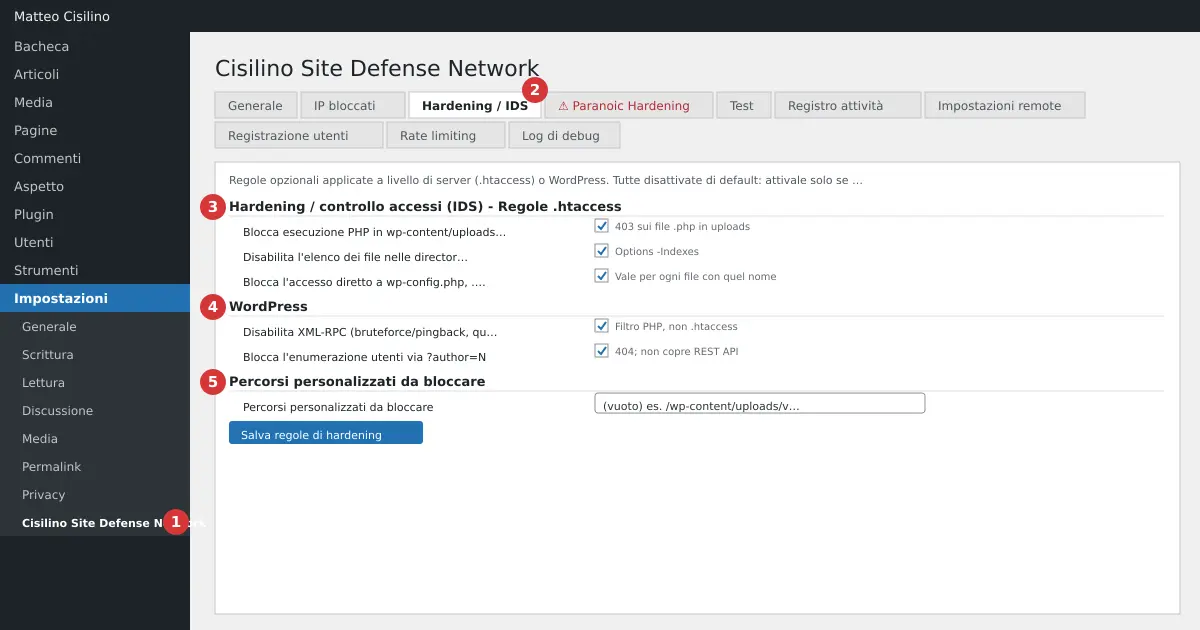
Where to find WordPress hardening
Open Settings > Cisilino Site Defense Network (point 1 in the image). Then click the Hardening / IDS tab (point 2). In the tab you’ll find three sections, in this order:
- point 3: under the heading “Hardening / access control (IDS)”, the row “.htaccess rules”.
- point 4: “WordPress”.
- point 5: “Custom paths to block”.
At the top the tab says: “Optional rules applied at server level (.htaccess) or in WordPress. All off by default: only turn them on if you know they won’t conflict with the site’s themes or plugins.” At the bottom there’s a single button: “Save hardening rules”.
What it’s for
The rules reduce the attack surface. Three switches write to the .htaccess file, as does the custom paths field. Two switches are WordPress filters. This isn’t a firewall and it doesn’t analyse requests: here “IDS” means rules for accessing files and folders.
The .htaccess rules (point 3)
Block PHP execution in wp-content/uploads
The full label is “Block PHP execution in wp-content/uploads (protection against shells uploaded as an “image”)”. The plugin replies with 403 to any request for a file with extension php, php3, php4, php5, php7, php8, php9, phtml, phps, phar or pht whose address contains /wp-content/uploads/. Capital letters don’t matter.
It only works with Apache 2.4 (it needs the mod_authz_core module: without it, the rule does nothing and doesn’t report that). On nginx the .htaccess file is ignored and no rule in this tab has any effect, aside from the WordPress filters. It covers the standard uploads folder, not a custom one. It can break plugins that genuinely serve PHP files from that folder. To know whether it works on your site, use the test in the Test tab chapter.
Disable directory listing for folders without an index
It writes a single line: Options -Indexes. Opening a folder with no index page will now show a 403 error instead of the file listing. If you use a folder as a public list of downloads, that listing disappears.
Block direct access to wp-config.php, .htaccess, readme.html, debug.log
The plugin writes a rule for each name and replies with 403. The check is on the file’s name, not its path. It therefore applies to any file with that name in any folder on the site, even inside other plugins. A plugin that publishes its own readme.html or debug.log will be blocked.
The WordPress rules (point 4)
These two WordPress hardening rules are PHP filters. They don’t touch .htaccess.
Disable XML-RPC
The label is “Disable XML-RPC (brute force/pingback, almost never needed on modern sites)”. The xmlrpc.php file stays in place, but WordPress refuses the XML-RPC methods that require login. Warning: this stops the WordPress mobile app, part of Jetpack’s functions, and publishing from external clients. The pingback.ping method doesn’t require login, and the filter doesn’t stop it: don’t rely on this rule to close down pingbacks. Trackbacks don’t use XML-RPC and aren’t affected. The plugin’s connection to the panel doesn’t use XML-RPC either, so it isn’t affected.
Block user enumeration via ?author=N
If the request contains the author parameter with a value (other than empty or 0), the public site shows “Not found.” with a 404 response. Warning: this rule doesn’t protect the REST API. The user list at /wp-json/wp/v2/users stays reachable. Some themes and plugins use ?author= to filter archives, and these will be blocked.
Custom paths to block (point 5)
This text field is for anyone who wants to close a specific folder, for example /wp-content/uploads/old-backup/. Write one path per line. Empty lines are ignored.
Each line is literal text. Capital letters matter, and the part after the ? in the address isn’t compared. The help text under the field talks about “patterns”, but none exist here. There are no wildcards: *, ^ and $ count as plain characters. The plugin blocks with 403 any address that contains that string, anywhere within it. That’s why the path /wp-content/uploads/old-backup/ also blocks /blog/wp-content/uploads/old-backup/x.
This field has no switch. The rule is active as soon as the field isn’t empty and you save.
Warning: if you write / or wp you block the whole site, admin area included. To get back you would need to fix .htaccess via FTP. Even a string such as /uploads/ blocks every image. Avoid the % character in paths.
Default values
Five switches off and an empty field. The settings live in the csdn_hardening option.
How to use it
Take it slowly: WordPress hardening is done one rule at a time.
- Make a copy of
.htaccessbefore you start. - Tick a single rule.
- Click “Save hardening rules”.
- Check that the site opens and that the admin panel works.
- Move on to the next rule.
After saving you are taken back to the General tab, not the one you saved. At the top you’ll find the notice. On success it says “Hardening rules saved and applied.”. On failure it says “Settings saved, but writing to .htaccess failed (permissions?). The rules are not active.”. With the failure, the two PHP filters stay active regardless.
Warning: the plugin makes no backup of .htaccess whatsoever. It doesn’t even check the syntax before writing. A rule that your server doesn’t support can cause a 500 error across the whole site. On a multisite network the file belongs to the network: the error hits every site.
What happens behind the scenes
The plugin writes between two markers: # BEGIN Cisilino Site Defense Network - Hardening and the matching # END. The rest of the file is untouched. A second, separate block holds the blocked IPs. If you deactivate the plugin, both blocks are emptied. If you turn everything off and save, the hardening block stays empty.
If something goes wrong
If the site shows a 500 error after WordPress hardening, open .htaccess via FTP. Delete the lines between the two hardening markers. Then try again with fewer rules. If nothing is written to the file, check the permissions on .htaccess.
For a wider view of good practice, read the official guide to hardening WordPress: it explains other measures that sit outside the plugin.
Previous chapter: Blocked IPs tab: reading the blacklist. Next chapter: Upload monitoring and the integrity check. For the full list of chapters go back to the introduction to the manual.


Leave a Reply