The “Blocked IPs” tab shows you, in a single table, every address blocked from any of three sources, whichever it may be. Manual unblocks don’t remove them from the table. In this chapter you’ll learn to read the list of blocked IPs WordPress keeps, and to use the “Unblock” button. No blocks are added here: for that you need the General tab.
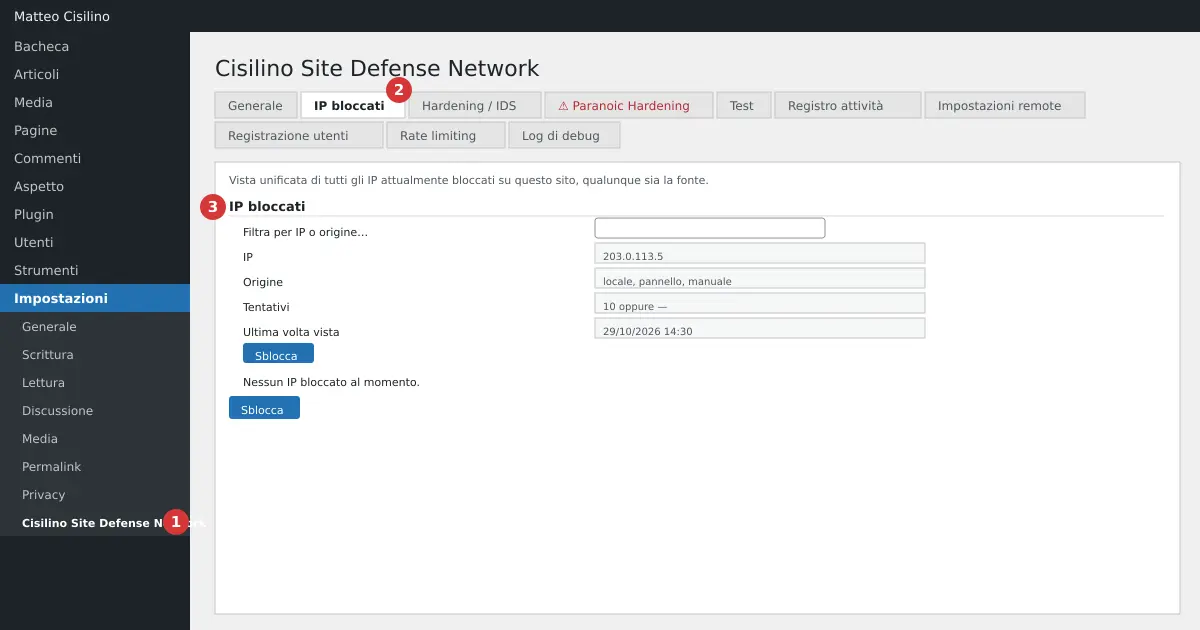
Where it is
In the side menu open Settings > Cisilino Site Defense Network (point 1 in the image) and choose the Blocked IPs tab (point 2). There’s a single section, “Blocked IPs” (point 3), described as: “A unified view of every IP currently blocked on this site, whatever the source.”
Above the tabs, in the page header, you’ll also see three counters: “IPs blocked locally”, “IPs received from the panel” and “IPs from the optional security list”. Manual overrides are not counted there.
What it’s for
It tells you who is blocked, why, and for how long. Each address can have three sources:
- local: the IP exceeded the failed-login threshold.
- panel: the IP is in the list received from the panel.
- manual: you blocked it yourself with an override.
A row can carry several sources together, separated by a comma.
How to read the blocked IPs WordPress table
- Look at the table. The columns are “IP”, “Source”, “Attempts” and “Last seen”, plus the action button.
- To search for an address, type into the “Filter by IP or source…” field. For example,
panelshows only the IPs coming from the panel. - To free an IP, press “Unblock” on its row.
- You’ll go back to the General tab and read “Override saved and .htaccess updated.”
If there’s no block at all, the table says “No IP currently blocked.”
What the columns mean
- “Attempts” and “Last seen” only have a value for IPs with a local block. For the others you’ll see “—”. The date uses the site’s time zone, in the format
29/10/2026 14:30. - The filter works in the browser, with no calls to the server. If the field isn’t empty a counter shows how many rows are visible out of the total.
- Panel IPs are shown without the part after the slash. A network such as
198.51.100.0/24therefore appears as198.51.100.0. - The ban reason and its expiry, when they come from the panel, are not shown in the table.
- The table is sorted alphabetically as text, not numerically:
10.0.0.1comes before9.0.0.1. - Manual overrides only appear if they are of the ban type and have not expired.
Default values and limits
The table is a snapshot of the three sources, not of the final effect: an IP already unblocked with “Unblock” stays listed for as long as its source exists (a local block stays forever). To know whether it’s actually free, look at the overrides table in the General tab. The “Unblock” button has no options: it creates a permanent “Always unblock (unban)” override for that IP. If there was already a manual ban on the same address, the unban replaces it.
Warning: “Unblock” asks for no confirmation. The action fires the instant you click. Check you’ve clicked the right row, because a row showing a panel network, for example 198.51.100.0, frees the entire network.
Warning: the “Security level” lists (Noob, Casual, Berserk) don’t appear in this table, even though they are applied. An address blocked by those lists is invisible here. You can still neutralise it with an unban override from the General tab.
Warning: blocking only works with Apache or LiteSpeed, and with a writable .htaccess. If that isn’t the case, the table still shows the IPs, but the server doesn’t stop them. Behind a proxy or a CDN the plugin reads REMOTE_ADDR, so it can see the proxy’s address rather than the visitor’s.
What happens behind the scenes
The blocked IPs WordPress shows in the table come from three sources: IPs with a local block, those received from the panel every 15 minutes, and manual bans. The plugin writes the result to the .htaccess file, between the lines # BEGIN Cisilino Site Defense Network and # END Cisilino Site Defense Network. A blocked IP receives a 403 across the whole site, even on wp-login.php.
In the .htaccess file the unblock always wins: an unban removes from the union the entry matching the address, whatever its source was. A panel network only leaves by unblocking the address shown in the table, not an IP inside that network. This applies only to this site. The panel doesn’t know about it and, at the next sync, may still include the address, but the local filter discards it.
Remember how blocks end:
- The local block doesn’t expire on its own. It is removed only with “Unblock”.
- The panel block disappears once the panel stops sending it.
- The manual block expires after the chosen duration, or when you press “Remove” in the General tab.
Example: unblocking 203.0.113.5
- Open the “Blocked IPs” tab and type
203.0.113.5into the filter. - Press “Unblock” on the row.
- In the General tab, under “Local IP overrides”, you’ll find a row with “Always unblock” and an expiry of “Permanent”.
To undo the unblock, press “Remove” on that row. If the original source still exists, the IP will be blocked again right away.
If something goes wrong
With blocked IPs WordPress, doubts almost always come from the duration. Did you unblock an IP, and it came back? A timed unban, once expired, restores the block if the source still exists. To free a local block for good, use the permanent unban, meaning “Unblock” itself. To block an IP by hand, or protect your own network, read Blocking, unblocking and whitelisting: the manual overrides.
To understand how the blocking file works, read the Apache guide to .htaccess files: it explains the file where the plugin writes the blocks.
Previous chapter: Blocking, unblocking and whitelisting: the manual overrides. Next chapter: Hardening / IDS: the rules for .htaccess. The index is in the CSDN manual.


Leave a Reply