Upload monitoring in the CSDN plugin notes down who uploads files to your site, even outside the media library. The integrity check, on the other hand, verifies that the plugin’s own files haven’t been touched. These are two different defences, but both are looking for the same scenario: a malicious file getting in where it shouldn’t.
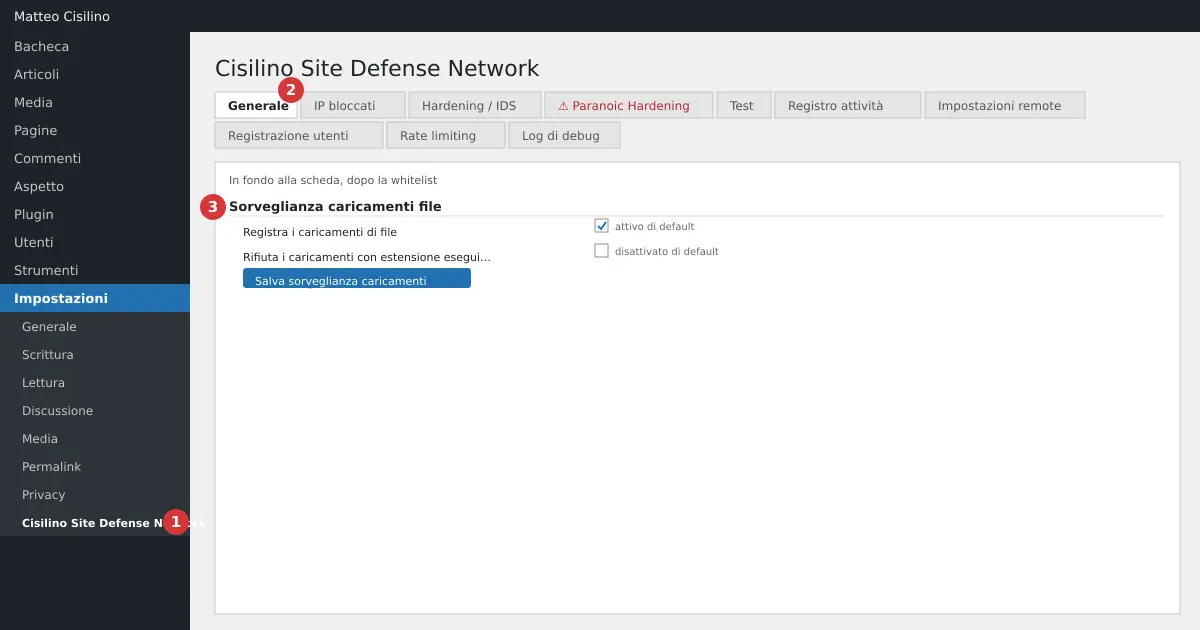
Where it is
Watch out for the location: the form isn’t in the “Hardening / IDS” tab. Open Settings > Cisilino Site Defense Network (point 1), stay on the General tab (point 2) and scroll right to the bottom. After the whitelist you’ll find the “Upload monitoring” section (point 3). The integrity check, instead, is read in the Test tab, covered in the Test tab chapter.
What upload monitoring is for
The section says: “Logs files uploaded to the site, including those that don’t go through the media library: plugin forms, admin-ajax endpoints, arbitrary uploads from a theme.” That is where most webshells get in. A log that only watches the media library won’t see them.
How to use it
- Open the General tab and scroll down to “Upload monitoring”.
- Check the “Monitoring” row: “Log file uploads”.
- Check the “Block executable files” row: “Reject uploads with an executable extension (.php, .phtml, .phar, .sh, .htaccess…)”.
- Click “Save upload monitoring”.
- Read the notice: “Upload monitoring settings saved.”.
Log file uploads
This option is on by default. The events go into the “File uploads” group of the activity log. For a request with no file, the cost is nil. The plugin notes every request that contains a file, together with the field and the address that received it. The actions you’ll see in the log are:
- “File received in a POST request”.
- “File uploaded”.
- “WARNING: potentially executable file uploaded”.
- “Upload BLOCKED”.
The local log holds at most 500 rows, unless you change the cap in the activity log settings. How to read it is explained in the Activity log chapter.
Block executable files
This option is off by default. It only works if “Log file uploads” is also on: with monitoring off, the block does nothing, even if its box is ticked. If you turn it on, WordPress rejects the file with the message: “File type not allowed on this site (Cisilino Site Defense Network: executable file upload blocked).” The check also catches double extensions, such as image.php.jpg.
The extensions treated as dangerous are: php, php3, php4, php5, php7, php8, phtml, phps, phar, pht, shtml, cgi, pl, py, rb, sh, bash, htaccess, htpasswd, jsp, asp, aspx, exe, so, dll, ini, svg and svgz.
Warning: the list also blocks .svg, so SVG logos can no longer be uploaded. It also blocks .ini, .py, .exe and .dll, which turn up in attachments and packages. The plugin looks at every part after the first dot. A name such as archive.pl.zip is therefore rejected. The block only applies to uploads handled by WordPress (the wp_handle_upload_prefilter filter). A plugin that saves the file on its own is logged (“File received in a POST request”) but not stopped. Anyone writing straight to disk, without a request that carries a file, leaves no trace in this log.
The integrity check
Unlike upload monitoring, here you aren’t looking at new uploads but at files already present. The plugin compares the MD5 hashes of its .php files against the ones expected. It looks for files that have been changed, are missing, or have been added. It excludes the tests and dist folders. Files that aren’t PHP aren’t checked.
The check runs once a day, through the WordPress scheduling system. On a low-traffic site it can slip. The reference is the checksums.json file in the plugin folder, if present. Otherwise the plugin uses a snapshot of the files taken on activation and on every version change.
How to read the outcome
You’ll find it in the Test tab, in the “Plugin file integrity” box, which also has the “Check now” button to run the check immediately. There are four cases:
- “No check has run yet.”, if it has never started.
- Green box: “All N files checked match. Last check: date.”.
- Yellow box: “No reference available: cannot verify. Reactivate the plugin to take a new snapshot of the files.”.
- Red box: “WARNING: the plugin’s files do not match what is expected.”, with three lists: “Changed”, “Missing”, “Unexpected”.
At most 15 names appear in each list. If you see red and haven’t touched the files by hand, the plugin tells you to treat the site as potentially compromised. Reinstall the plugin from a trusted copy and check the rest of the installation.
If the reference is the snapshot, the green box says so. That comparison finds changes made afterwards, not a plugin already compromised at the time of installation.
Warning: integrity is a detector, not a barrier. Anyone who has already written to the files can also rewrite the hashes or switch off the check. Manual changes, or an upload that stops halfway, produce a red alert.
What happens behind the scenes
Upload monitoring and integrity share the same log. The daily check writes to the activity log in only two cases: when it finds a problem, and when, after a problem, things return to normal. When all is well it writes nothing. The log is then sent to the panel, so a copy of the alert sits off your server.
If something goes wrong
Upload monitoring stays useful even with blocking switched off. If a legitimate plugin stops uploading files, switch off “Block executable files” and try again. To understand which uploads reach the site, leave monitoring on and check the log. For the rules on files in uploads, see also the Hardening / IDS chapter.
The risk this is trying to reduce is described by OWASP: read the page on unrestricted file upload, useful for understanding why uploads are a weak point.
Previous chapter: Hardening / IDS: the rules for .htaccess. Next chapter: Test tab: checking that the protections work. Index: introduction to the manual.


Leave a Reply